Maximize Your Convention Experience With NotebookLM
There are some of you out there who are highly organized and make great use of your notes after attending a convention or conference—and then there’s the rest of us. If your experience is anything like mine, you probably attend a convention, get great ideas, take some notes, and then you follow up on two or three of them after the convention while the rest fade away from memory. With TESOL 2026 just around the corner, let’s take the opportunity to play with a valuable tool and use it in a practical way to get the most out of our convention experience.
If you haven’t looked into Google’s NotebookLM, there’s no better time than now to check it out. NotebookLM allows you to upload documents of your choice, and it uses those documents as the sole source for creating a new AI chatbot that is hyper-focused only on those documents. That could mean digital notes written on your computer or your phone, salient photos you took of the slide shows, voice memos you reflected on after a presentation, and even hand-written notes for those of you who, like me, believe in the power of pen and paper in the learning process.
You may choose to create one giant notebook for the whole convention or create individual notebooks to focus in on individual sessions. Here I’ll use the idea of building around one session, but you can adjust to your needs. Make sure you’re logged into your Google account and go to NotebookLM.google.com, then click Create new notebook to get started.
Taking Notes
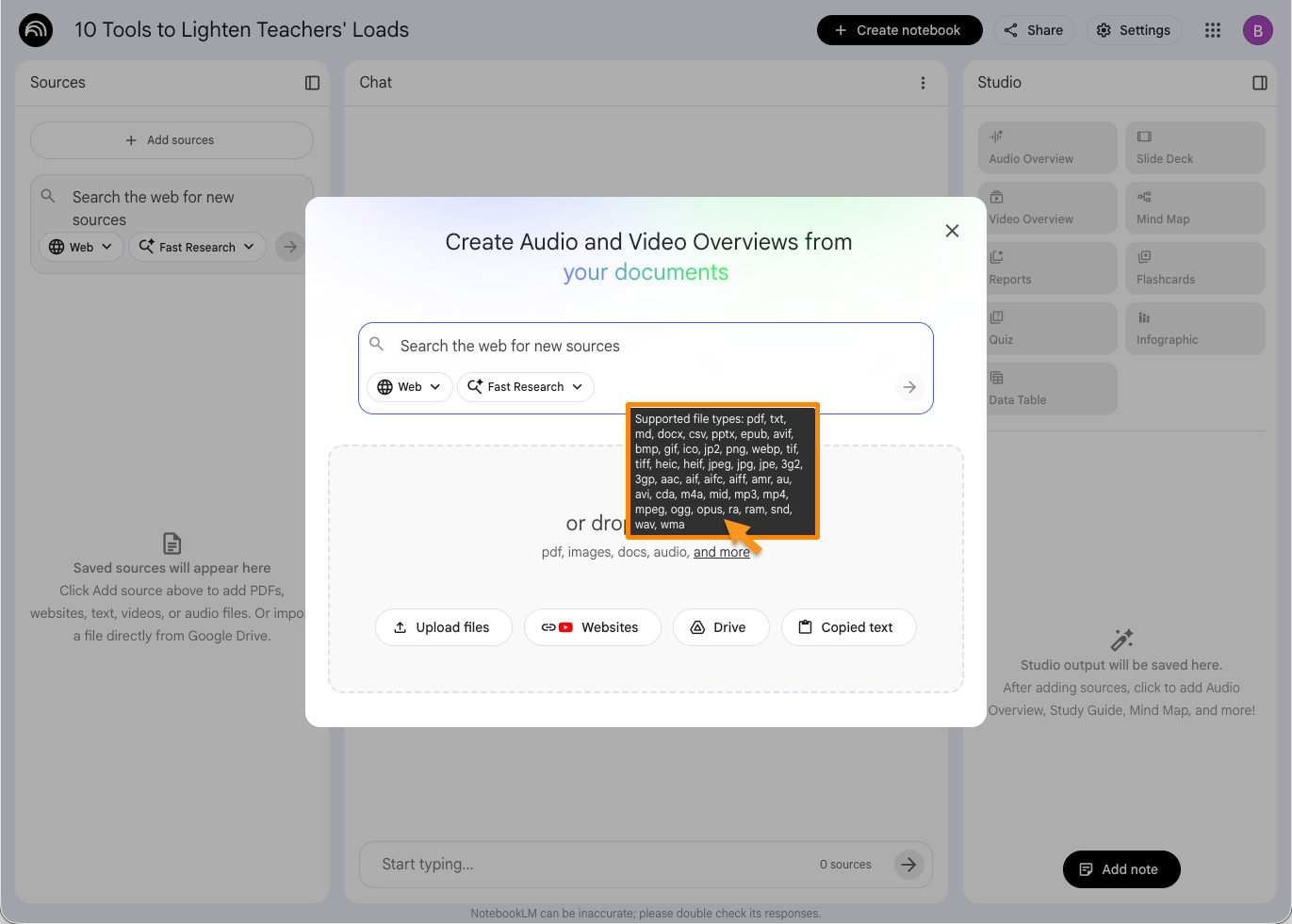
Most of us probably have preferred methods for taking notes. As mentioned above, you can do this however you like. If you take notes in Google Docs, you’re already on the smooth path to making sense of a session. If not, don’t worry—the joy of NotebookLM is that it works around your approach, and not the other way around. Whether you’re drawing sketchnotes, working with a bullet-journal, doing Cornell notes on scrap paper, or recording sections of the presentation (ask permission from the presenter, of course), all of your notes can be uploaded right into NotebookLM. It accepts most common file types, including PDFs, word processor documents, photos, video and audio files, and more. At most conventions, presenters are also encouraged to share their slide decks, so you can upload the PowerPoint, Google Slide, or PDF if it’s made available to go along with any of your own notes.
Setting Up Your Notebook
After your session, click on the Add sources button in the top right. This is where it will allow you to upload your files or link to any online resources. While it’s tempting to think that your notes will be the only ones you add, many presenters share valuable videos, links to published research, websites from specialists on the topic, and more. If your own notes are all you want to work with, great, but if you want to add more, don’t feel the need to limit yourself.
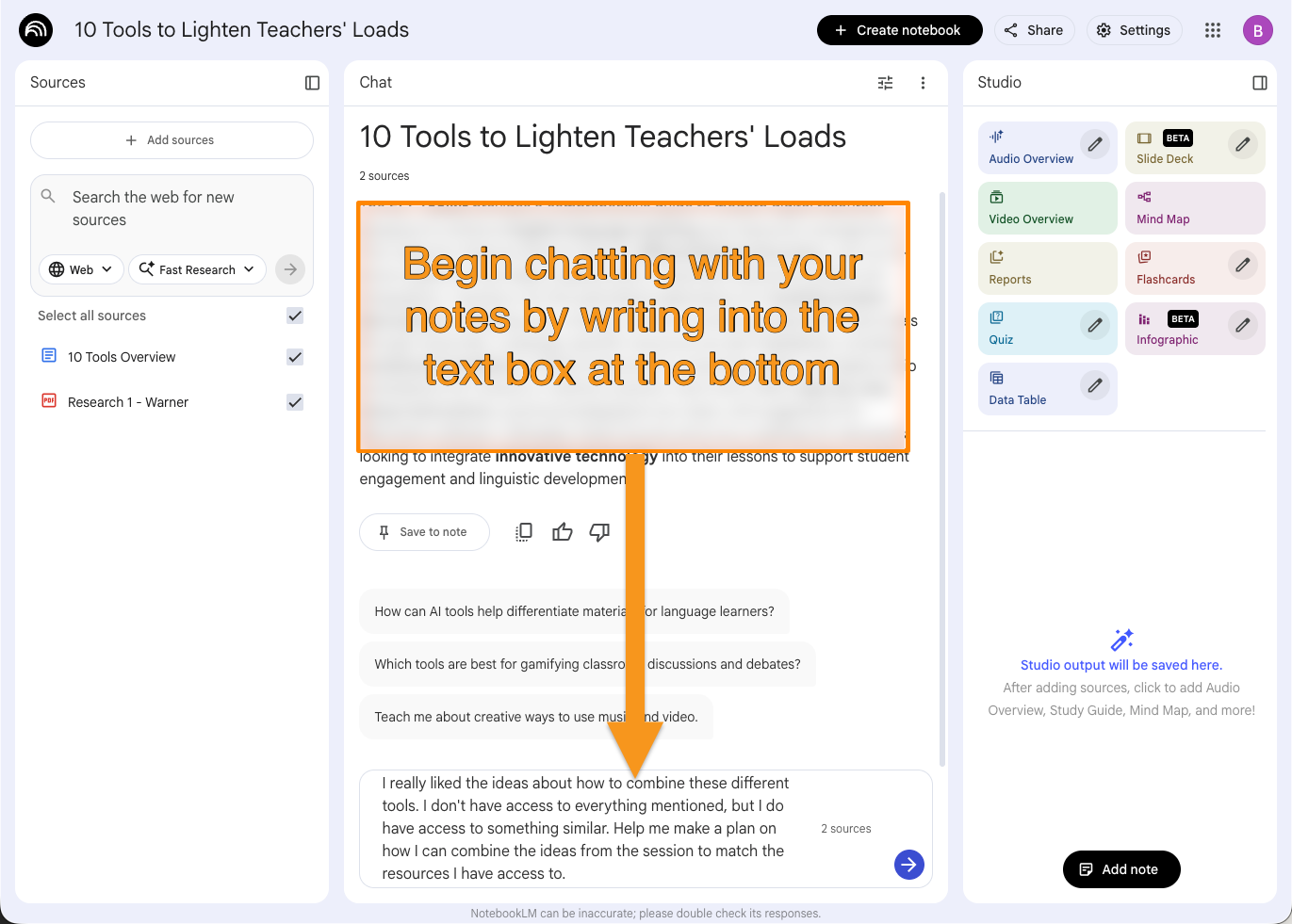
From here, your notebook will start to come to life. NotebookLM uses Gemini’s AI features to make sense of your notes and to help you talk with a chatbot about how they connect and how you can build new ideas from the resources provided.
Crank Up The Learning
One of the most valuable parts of NotebookLM is the Studio, which converts your notes into a new medium including a video overview, a mind map, a report, an interactive podcast, and more. We can’t cover them all here, but let’s peek at a few that might help you synthesize your takeaways from any given session.
Audio Overview
This is what put NotebookLM on the map, and for good reason. Essentially, it takes all the documents you’ve uploaded and uses it to create a conversational podcast where two hosts talk about what you’ve provided. They don’t always get every important detail, but as a review it’s a great way to reinforce your learning. If you’ve got NotebookLM on your phone, you can simply pop in some headphones and listen in on your walk back to your room, or if you’re flying home, you can have a custom playlist ready to listen to during your flight. The podcast isn’t just a podcast, though—you can tap a button to interrupt the hosts and join in on the conversation, asking questions and giving ideas for clarification, which you can then save to review again later.
Flashcards and Quiz
Want to make sure you actually remember specific details? The Flashcards feature combines well with the Quiz feature to allow you to work on locking down some information. It may be easy to consider a convention as a “big picture” type of event, but there are plenty of good reasons for you to challenge yourself to drill down and memorize important information you picked up.
Infographic
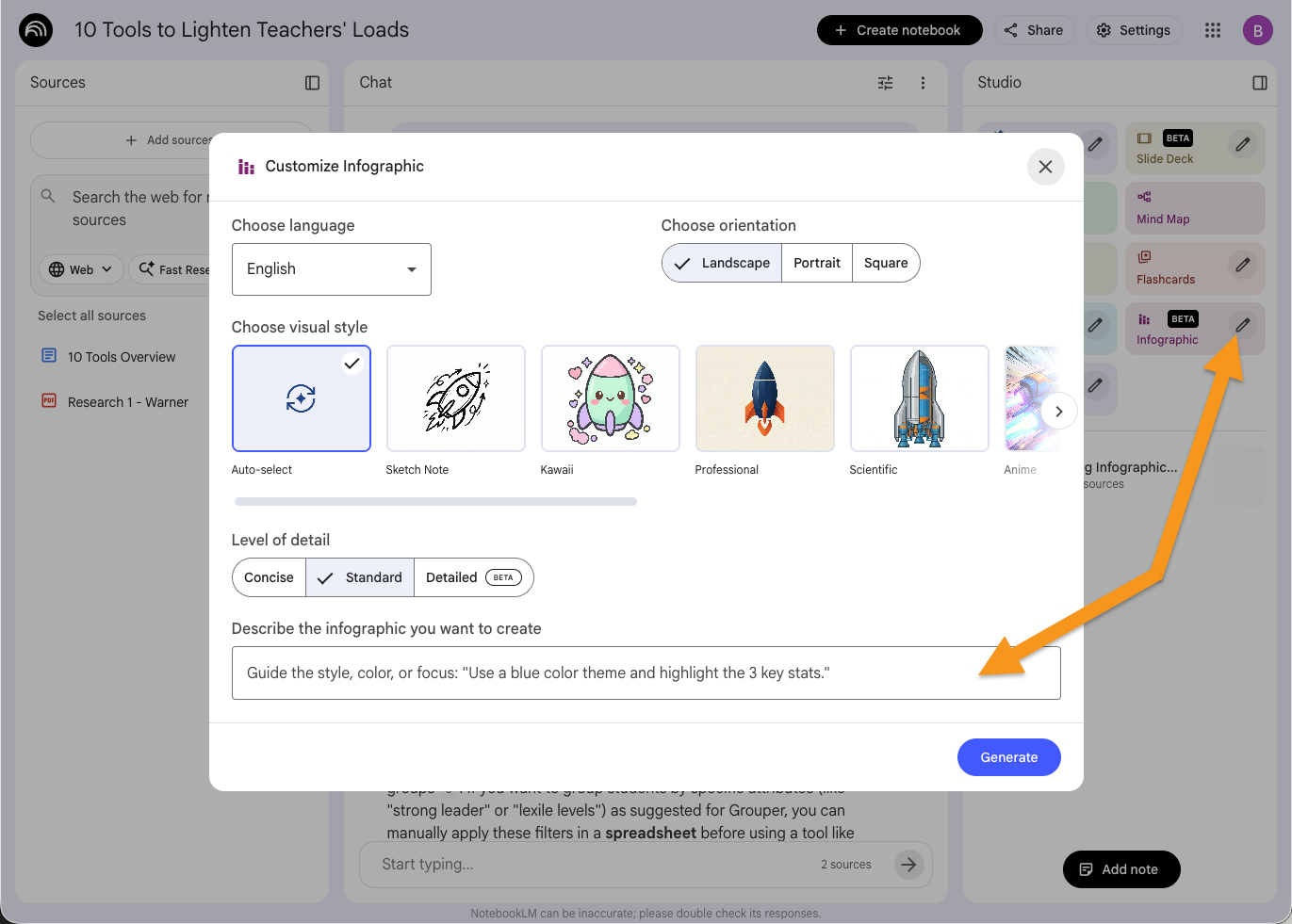
If you like learning through visuals, but you don’t love your drawings or simply don’t have time to draft out an infographic by yourself, this tool allows you to build out a customized infographic. Make sure to click on the pencil icon first so you can guide it to your intentions. You can choose things like your preferred language, visual style, level of detail, and even tell it what parts of the resources you want it to focus on.
Bringing Everything Together
If you went the route of making a notebook for each session, there’s still a way to bring multiple notebooks together for a birds-eye view of all the notes you captured. When you go to Google Gemini, you can click the “+” button in the prompt box and NotebookLM will show up as an option. Simply click on the sessions you’re hoping to combine (at the moment you can select up to five different notebooks) and use them as a way to build a new focused chat based on what you’ve already done with each notebook.
So, imagine you attended my session on different tools to lighten your load, and then you attended a session on the value of storytelling. You could link those two notebooks together through Gemini to get ideas on how to use those tools in the context of classroom storytelling.
You can start to see how many ideas you can develop to maximize your convention participation and turn everything into a massive learning experience that you can quickly and easily revisit and refocus as your needs change over the course of the term—or even over years. Give NotebookLM a try to see how it works, and if you’ve got your own ideas, we always love it when you share!
About the author
Brent Warner is a professor of ESL at Irvine Valley College in California, and an educational technology enthusiast. He is co-host of the DIESOL podcast, the only podcast with a specific focus on EdTech in ESL. He frequently presents on the crossroads of technology and language learning, focusing on student engagement and developing learner autonomy. Brent likes his coffee black and his oranges orange. He can be found on LinkedIn at @BrentGWarner.